


Complete Guide: Build Your News Website with Newspare
Build a powerful, modern news or magazine website—from installation to publishing—using a fully visual, no-code workflow.
Newspare is a Full Site Editing (FSE) block theme, meaning you can design everything (header, footer, pages) using blocks, while BlockSpare enhances it with advanced layouts and templates.
Install the Theme
- Go to Dashboard → Appearance → Themes → Add New
- Search for Newspare
- Click Install → Activate
✔️ You now have a Full Site Editing (FSE) theme, allowing full visual control of your website.
Newspare is a block theme, meaning:
- You can edit Header, Footer, Templates
- Everything is customizable using blocks
- No need for traditional theme options
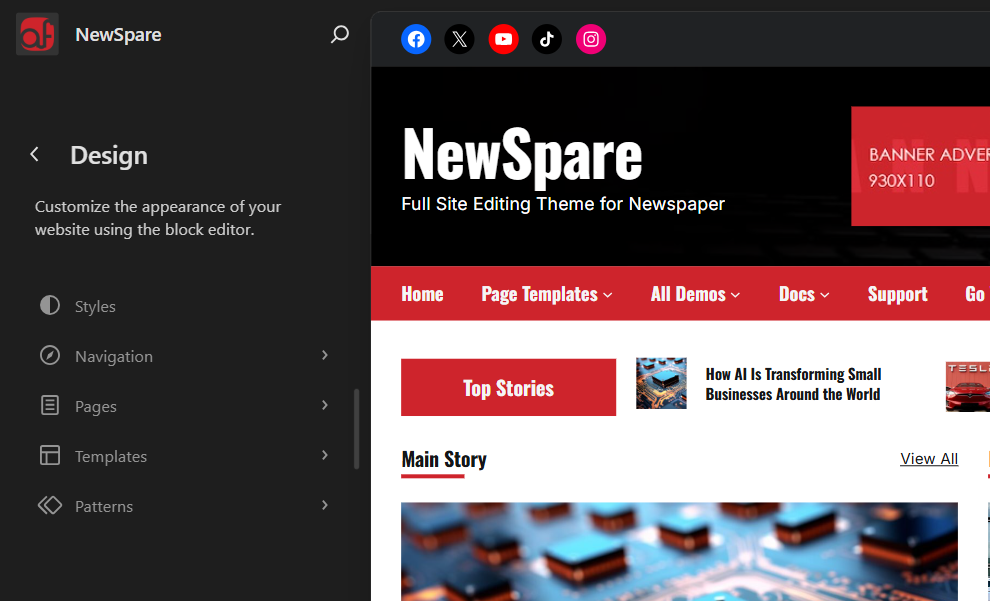
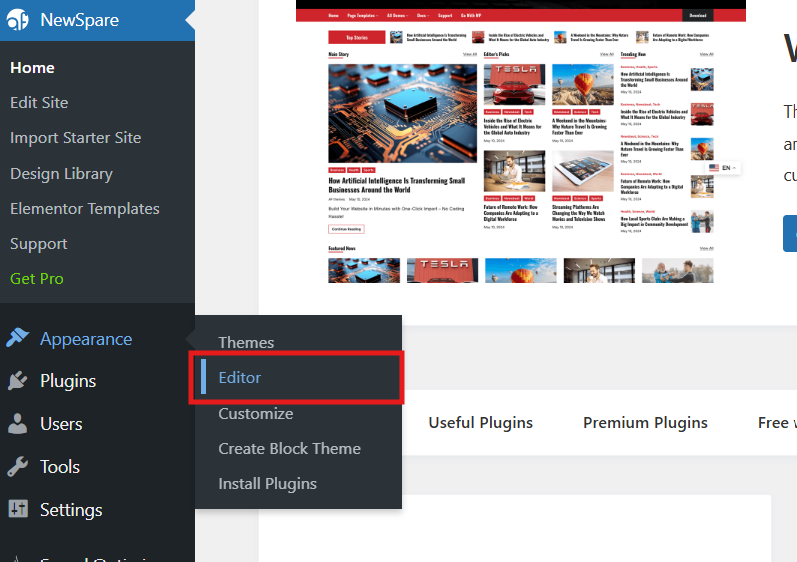
Access it here:
👉 Appearance → Editor (Site Editor)
You can:
- Edit templates (single post, archive, homepage)
- Modify global styles (colors, fonts, spacing)
- Customize layout visually
✔️ Full control without coding.
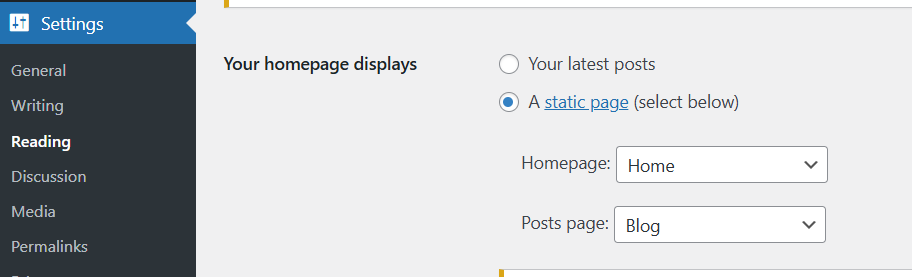
Changed the Default Homepage
- Go to Settings → Reading
- Set A Static Page: Choose
- Homepage → home page of your choice
- Posts Page → Blog page
Import Starter Templates (Templatespare)
This is where your site instantly comes to life.
Steps:
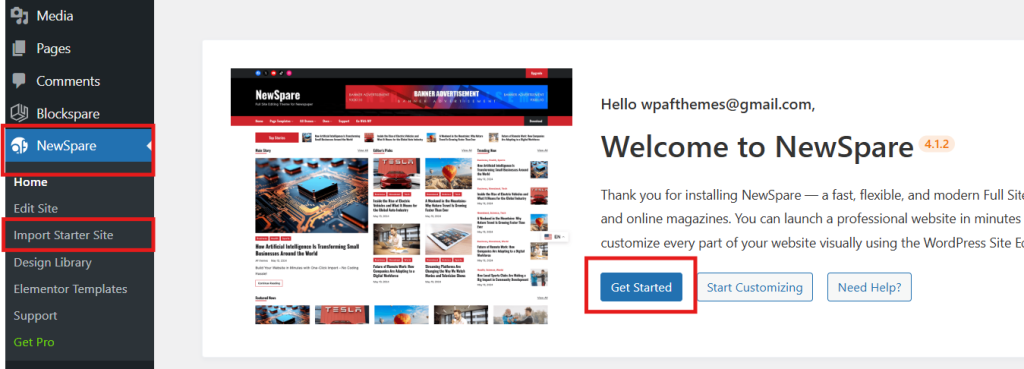
- Go to Theme Name > Get Start on the Theme Dashboard
- Browse demo sites
- Select a design you like
- Click Import
✔️ This will automatically:
- Create pages (Home, Blog, etc.)
- Apply layouts and design
- Add demo content
💡 Starter templates are complete pre-designed layouts that you can customize instead of building from zero.
Designing Pages with BlockSpare
This is where your site becomes professional and elegant.
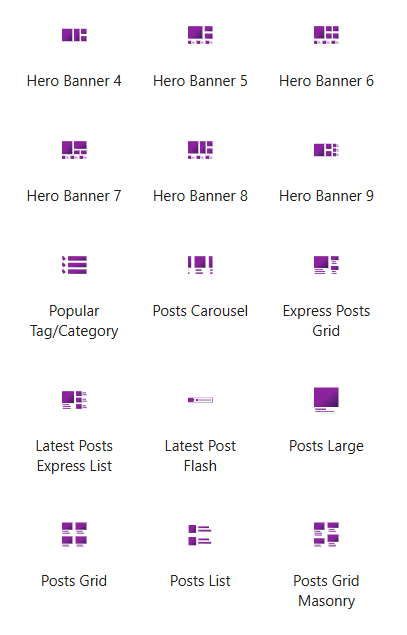
BlockSpare gives you:
- Post grids, sliders, and carousels
- News tickers and trending sections
- Hero banners and featured layouts
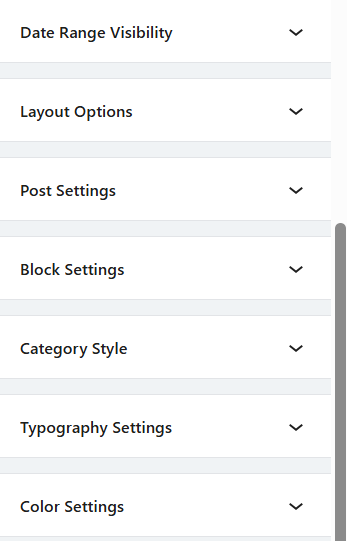
- Advanced design controls (spacing, typography, colors)
⚡ How BlockSpare Works (Simple Workflow)
- Choose a block or template
- Insert or import it
- Customize visually
✔️ That’s it—no coding required.
🆓 Free (Newspare Theme)
A solid foundation to build a clean and functional news or blog website using modern WordPress tools.
🔹 Core Features
- Full Site Editing (FSE) support
- Ready-to-use basic templates (homepage, single post, archive)
- Customizable header, footer, and sidebar
- Global style controls (colors, typography, spacing)
- Starter templates to quickly launch your site
- Standard post layouts (grid and list)
- Seamless Gutenberg (block editor) experience
- Lightweight, fast, and optimized
✅ Best For
- Beginners getting started with WordPress
- Personal blogs or simple news websites
- Users who want a clean site without advanced design needs
💎 Pro (BlockSpare Plugin+ Extended Features)
BlockSpare Pro plugin is the premium version that extends the functionality of the Newspare Theme.
After installing and activating the Pro plugin, you can unlock advanced features, blocks, and layouts directly within the theme—giving you more control over design and functionality.
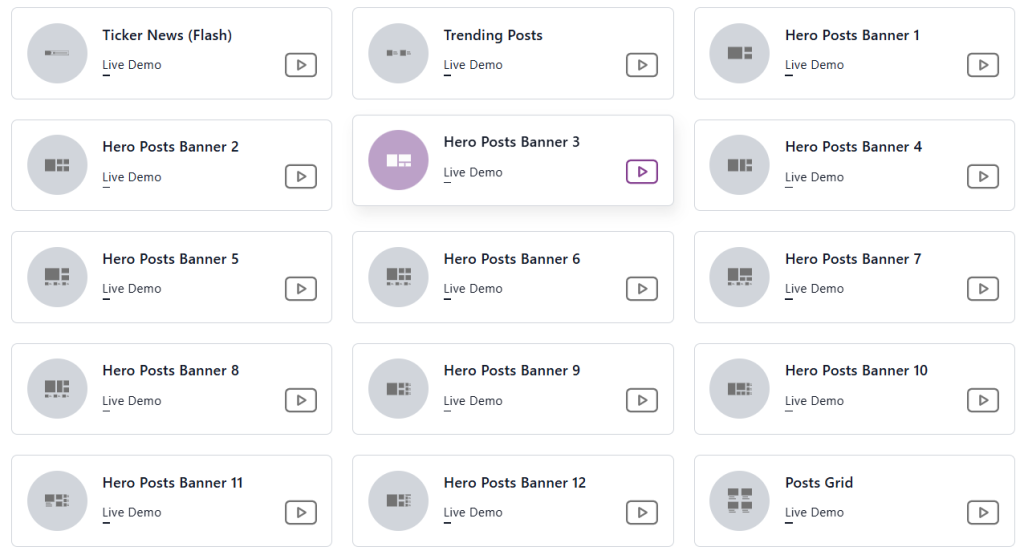
🚀 What You Unlock with BlockSpare Pro
- Advanced layouts (grids, sliders, carousels, masonry)
- Premium starter templates and sections
- Enhanced design controls (spacing, typography, colors)
- Dynamic content features (trending posts, news tickers, filters)
- More flexibility to build a professional-looking website
✔️ It seamlessly integrates with the Newspare theme and enhances your overall design experience.
📦 How to Install BlockSpare Pro (ZIP Method)
Follow these steps to install the Pro version:
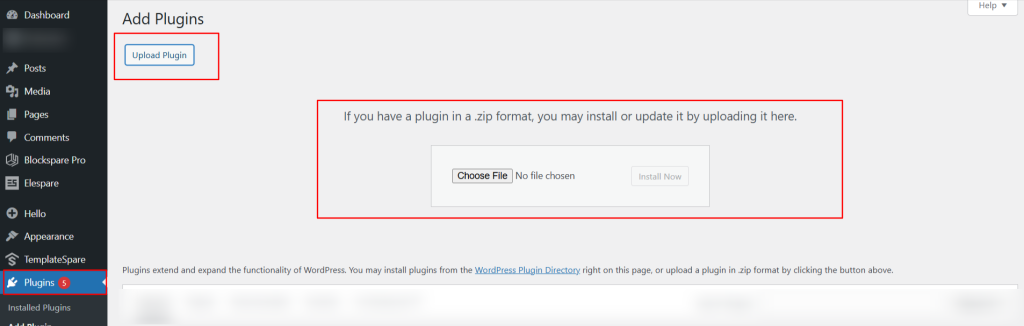
- Go to Dashboard → Plugins → Add New
- Click on Upload Plugin (top of the page)
- Click Choose File and select the BlockSpare-Pro .zip file
- Click Install Now
- After installation, click Activate Plugin
Import Full Starter Templates (With Demo Content)
This method imports a complete pre-designed website including pages, posts, and layouts.
Steps:
- Go to Dashboard
- Navigate to Appearance → Newspare → Import Starter Templates → Get Started
- Browse available demo designs
- Click on your preferred demo
- Click Import
✔️ This will import:
- Homepage design
- Sample posts and pages
- Pre-built layouts and sections
💡 Best for users who want a ready-to-use website setup quickly.
🧩 Using Pattern Library (No Demo Content)
This method allows you to build pages without importing full demo content.
Steps:
- Go to Dashboard
- Navigate to:
Pattern Library → Starter Templates - Browse available patterns
- Click Use to insert into your page
✔️ This creates pages using only layout blocks (no demo posts or content).
💡 Best for users who want clean, custom-built pages.
✍️ Insert Templates Inside Page/Post Editor
You can also add templates directly while editing content.
Steps:
- Go to Posts → Add New or Pages → Add New
- Click the “+” (Add Block) icon
- Select Pattern Library (BlockSpare)
- Choose your preferred template
- Click Insert / Import
✔️ The layout will be added instantly inside your page or post.
💡 Best for quickly designing specific sections like hero, grids, sliders, or banners.
⚠️ Important Note
Before activating the Pro version:
- Make sure to deactivate the free version of BlockSpare plugin
👉 This avoids conflicts and ensures all Pro features work properly.
🧠 Quick Summary
- Free → Great starting point with essential features
- Pro → Unlocks advanced design, flexibility, and professional-level layouts
👉 If you just want a working site, Free is enough.
👉 If you want your site to stand out, Pro makes a big difference.
Video Reference
Join the AF Themes Family
Join the AF Themes family, where excellence meets ease. Explore the endless possibilities and embark on your web journey with us today.
Together, we’re shaping the future of the web.
About the Author